




Why Does the Font Look Wrong When the Client Opens My Source File, While It Looks Fine on My Own Computer?
After you send a source file, if the client opens it and all the fonts look wrong, the issue is usually not about internet speed but about missing a “font environment check” before delivery. Under the more common project delivery practices of 2026, an editable source file itself is not suitable for full outlining, because outlining removes the ability to edit later. A more reliable approach is to deliver the “outlined output file” and the “editable source file” separately, along with a font list. To reduce rework, run an isolated test on a computer that does not have the project fonts installed before sending—this usually takes 10–30 minutes, yet it can save the client one or two rounds of time spent tracking down fonts and repeatedly requesting changes.
When Fonts Don't Match Up, First Determine Whether It’s Missing or Replaced
When the client says “the fonts have changed,” first confirm which situation it is: The first is that the system prompts that fonts are missing when opening the file and temporarily substitutes default fonts. The second is that there is no pop-up, but the layout subtly changes—for example, Chinese characters become blocks, title line spacing expands, or English punctuation becomes misaligned. The former often points to fonts not being installed; the latter is more likely due to version inconsistencies of fonts with the same name, or the source file being saved by a higher version of the software, so older versions cannot fully read kerning and font weights.
A common pitfall is: the designer has many fonts installed on their own computer and everything opens normally, so they assume the client has them too. After the file is really sent out, the recipient’s machine does not have the corresponding fonts, and the software automatically substitutes them. Before sending, it’s best to ask one question: “Can the other party install fonts themselves, and are the software versions consistent?” This one question saves much more effort than troubleshooting via screenshots afterward.
Outlining, Embedding, or Attaching Font Files: How to Choose Among the Three?
There are three common ways to handle font handover: full outlining, font embedding, and attaching font files. They are not different terms for the same service but correspond to different delivery purposes.
- Full outlining: Converts text into vector outlines, which no longer depend on font files when opened on any device. The downside is that the text cannot be edited afterward; if typos are found after finalization, restoring glyphs and redoing areas can be troublesome. Suitable for large-format prints, finalized print files, and other files where text will not change.
- Font embedding: Commonly seen in PDF or typesetting software packaged output, with high visual fidelity. However, when clients continue editing in the source software, the same fonts still need to be installed locally. Embedding mainly solves “viewing” stability, not “editing” portability.
- Attaching font files: Adding OTF/TTF files into the delivery package is only suitable for internal teams where licensing permits transfer. Commercial font licenses usually do not allow transferring to clients, and external delivery carries high copyright risks.
In terms of time cost, outlining and verifying a single-page file generally takes 5–15 minutes. For a booklet of dozens of pages, checking line spacing and overflow page by page may require reserving half a day. Attaching font files may seem to have zero cost, but it can plant hidden risks of licensing and distribution issues later. According to common delivery practices, the first two are the main approaches, while the third should be used cautiously.
Run an Isolated Test in a Font-Free Environment Before Delivery
Instead of agonizing over whether to outline at the last minute, break font acceptance into three fixed actions: first, list fonts; second, run an isolated test; and third, package files separately according to their purpose.
- Create a font list: Record all fonts used, including font name, weight, and format (OTF or TTF). Do not simply write “Microsoft YaHei”; also note weights such as Regular or Bold.
- Run an isolated test: Find a computer or virtual machine that does not have the project fonts installed, and open both the source file and the view file. If the layout is abnormal, it indicates the fonts are not “safely included,” and you need to go back and complete the previous step.
- Output three items based on purpose: Use an “outlined PDF/PDF-X” for printing or output vendors; use an “editable source file + font list” for clients who need to retain editing capability; use a “normal PDF with embedded fonts” for quick verification. Name the three files separately and indicate their intended use.
You can judge the pass criteria this way: without installing additional fonts, both the viewing version and the output version should open and appear consistent with the design preview. The editable version should allow continued modification after the client installs the fonts according to the list. If the client does not have installation permissions, any text changes should be handled back at the designer’s end, and it is not advisable to force the source file onto them.
A Real Delivery Scenario: Missing the Font List Cost Two or Three Extra Days
Once, a client took a source file to a branch office in another city to change a title, but that office’s devices could not install fonts freely. Right after it was sent, when they opened it, all titles had been replaced with system default fonts, and line spacing was also messed up. The constraints were: no commercial fonts could be installed, yet editable text had to be preserved. The approach was to first go through the font list carefully, replace the affected titles with commercially usable open-source fonts, reorganize the layout, and then output an outlined PDF for review. The troubleshooting and re-layouting took most of a day or a full day, making the overall delivery 2–3 days later than planned. In typical experience ranges, this kind of rework can largely be reduced by simply running one extra 10–30 minute isolated test before sending.
Since then, I have added “font list” and “do not edit directly if you do not have licensed fonts” to the delivery notes, and included a “read me before opening.txt” file inside the archive. Although there may not always be a pop-up reminder, the client at least gets an extra reminder before opening the file, and the rework rate for similar issues has dropped considerably.
Where Does This Approach Apply? Where Does It Not?
This font acceptance approach is suitable for the following scenarios:
- Source files delivered to clients for secondary editing that need to flow across systems or departments;
- Three-party collaboration where a printer requires outlining, but the requester still wants to keep an editable version;
- Projects with many pages, mixed fonts, and high revision risks, such as manuals, packaging, and VI systems.
Scenarios that are not suitable or need adjustment include:
- If the client only needs final JPG/PDF output and never opens the source file, the isolated test can be skipped;
- When font licenses do not allow transfer, “attaching font files” is directly invalid, leaving only the options of listing fonts or outlining;
- If the recipient’s software version is too old to open newer files, upgrade compatibility before discussing fonts; otherwise, even testing is futile.
A boundary should also be drawn here: the fact that fonts in a source file are not broken only means the issue at the “opening and editing” level is solved; it does not mean printing colors can be fully reproduced. For printed matter, you still need to handle color conversion, bleed, and outlining according to the printer’s specifications. Font checking can reduce some rework but cannot replace pre-press checks.
FAQ
When a client opens the source file and says fonts are missing, what is the most likely cause?
It is usually due to version inconsistency of fonts with the same name, such as a newer OTF versus an older TTF; it could also be that the file was saved by a newer software version and older versions cannot parse it fully. Taking a screenshot of the prompt and checking the font name usually helps you identify the problem.
When delivering a source file, should I outline all text?
Do not assume you should outline everything. Outlining stabilizes the appearance, but the text becomes uneditable, and fixing typos requires redoing work. Outlining is suitable for finalized print files, while source files that need secondary editing should retain live text and include a font list.
Can I send font files directly to the client along with the project files?
It depends on the license. Many commercial fonts only allow installation on a single machine and cannot be transferred to third parties. Sending the files directly may cause the recipient to unintentionally infringe copyright. The safe approach is to list the fonts and inform the client where to purchase them, or use an outlined PDF instead.
What if the client has no installation permission but needs text changes?
First send an outlined PDF for content confirmation. For text changes that do require continued editing, it is recommended to have them done back at the design side, or let the client purchase the fonts and have a colleague with installation permission install them. Avoid forcing the source file open in a font-free environment.
In summary: next time you send a source file, treat fonts as a formal acceptance item. Create a list, run an isolated test, and package files separately by purpose. Under the typical 2026 delivery pace, these actions mostly take 10–30 minutes, yet they can save the client a great deal of unnecessary back-and-forth. If the client only needs to view or print, simply send the outlined version or a PDF with embedded fonts—there is no need to hand over the source file.
-
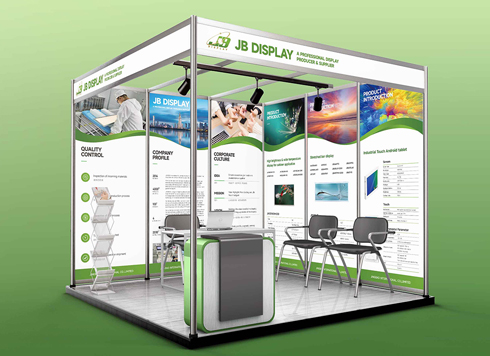 Booth Poster Design for Professional Monitor Product Suppliers
The standard exhibition booth poster projec ...
-
 Design of Standard Exhibition Booth Posters for Beauty Instruments
Carefully designed a standard exhibition bo ...
-
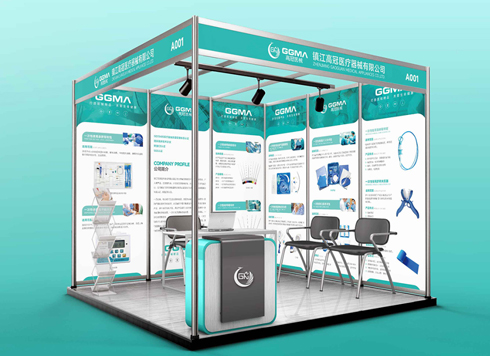 Design of Exhibition Posters for Medical Device Standards
XiYue is designing an exhibition booth post ...
-
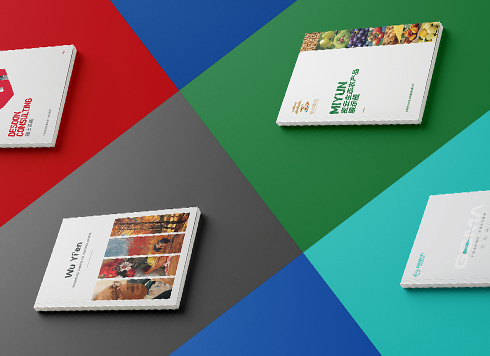 Collection of Brochure Design Cases in 2024 (Cover Series 02)
Our brochure design projects focus on diver ...
-
When a client only needs a few price and size changes at project close but insists on layered PSD, is outlined AI plus a note enough?
Date: Nov 1, 2026 Read: 12
-
The AI-generated logo looks decent, but the printer says it needs vector art—should I ask AI to regenerate it or have a designer redraw it?
Date: Oct 15, 2026 Read: 34
-
Client wants source files before final payment — do designers always have to hold the line? Miss these handover details and your reputation suffers
Date: Aug 30, 2026 Read: 58
-
Graphic Design Acceptance: Don't Just Check Mockups—Watch Source Files, Color Difference, and Bleed
Date: Aug 17, 2026 Read: 69
-
Black body text in a brochure shows a red fringe when zoomed in, while color photos on the same page look fine—is the black text set in four-color black or is the printer's registration off?
Date: Nov 2, 2026 Read: 2