



If I Send a Print-Ready Design to the Printer Without Outlining Text, Will It Really Cause Problems?
Before sending a graphic design file to a print shop, outlining text is not a legally required step, but based on 2026 project delivery habits, most print shops will ask you to “outline the text before sending.” The essence of outlining is to turn every character into a vector outline made of anchor points and paths, so that the output device no longer depends on locally installed fonts. In most printing scenarios, outlining text is a direct way to reduce layout drift and avoid rework. Printing without outlined text is also possible, but you must ensure that fonts are fully embedded and that the print shop's software environment is compatible—both are indispensable. Based on years of experience in pre-press file handover, my default conclusion is: whenever a file is going out to a production environment, outlining the text first while keeping an editable source file is the least troublesome practice.
If you send files to a print shop without outlining, what problems can occur?
The most typical problem is automatic font substitution when fonts are missing. Print shop machines may not have the fonts used by the designer; when fonts are missing, software uses fallback fonts, often resulting in wider text, broken letter spacing, abnormal line breaks for Chinese punctuation, or misaligned English baselines. A more subtle issue than missing fonts is different font versions. Newer fonts can differ from older versions used by the print shop in some glyph shapes, leading to printed strokes that don’t match the on-screen preview. Another common misconception is that “if the PDF has embedded fonts, it’s fine.” But PDF embedding is often subset embedding, which only guarantees preview on the current page. If the print shop needs to re-edit or impose the file, font permission restrictions can cause text reflow or direct errors.
- Missing fonts or automatic substitution leads to inconsistent heading font styles
- Line spacing and paragraph alignment are disrupted, especially for long Chinese headlines
- During secondary PDF editing, font permissions are restricted and imposition may fail
- After the print shop outlines the text on your behalf, you don’t verify—special glyphs or ligatures may change
The judging standard is simple: during the design phase, check the font list at least once to confirm all fonts are embedded; if the recipient cannot verify the font environment, outlining is required.
When is outlining necessary, and when can you skip it?
This depends on the intended use of the file. Outlining mainly serves production ends—print, large-format printing, die-cutting—so that the producer can output without relying on font environments. On the other hand, electronic screen display, web graphics, internal proofing, and editable source file archiving do not require outlining at all. Forcing outlines in these cases only makes files larger and text uneditable. Based on 2026 project habits, scenarios can be divided into two categories:
- Usually requires outlining: large-volume printing, packaging proofs and film output, outdoor large-format printing, files sent to remote print shops, and shared documents whose font licensing is not fully compatible.
- Usually does not require outlining: screen-presentation PDFs, web images, WeChat long images, review copies, and AI/InDesign source files intended for future edits.
The cost difference between these two routes is worth a direct comparison. For a one-page A4 poster, outlining text and checking it takes about 10–15 minutes. Skipping it saves that step at the time, but if the recipient is missing fonts, checking, waiting for a return, and re-communicating could consume 0.5–1 business day. For multi-page brochures, based on our experience range, checking outlined pages page by page for every 20 pages takes about 40–60 minutes. That doesn’t seem like much, but it avoids common pre-press rejections. It’s important to note: even when outlining the print version, always keep an un-outlined source file for later edits. Outlining is a protective measure for output, not a replacement for the original file.
Is outlining more stable? What hidden pitfalls remain?
Outlining does not cover all risks. Once text is outlined, it becomes a group of vector shapes, and the direct cost is that you can no longer edit it with the text tool. If there is a typo in the document, you have to go back to the source file, fix it, and outline again—essentially redoing the whole output pipeline. Also, after outlining, file sizes increase noticeably. A multi-page catalog that’s a few tens of MB may jump beyond 200 MB after outlining. In the 2026 remote-collaboration environment, uploads and delivery can slow down. Some headings with OpenType features or colored fonts may lose ligatures, alternates, or other dynamic effects after conversion.
Here’s an actual delivery case we handled: in a multi-page catalog project, the client was rushing to meet the print deadline and asked us to add footer text and output immediately. We followed the process and outlined only the newly added text, but we missed a footnote in the lower-right corner that remained un-outlined. The print shop found it missing fonts, but the salesperson didn’t insist on sending it back; instead, they used substitution fonts on press. Only when the proof come out did they see the footnote font style didn’t match the body text, and the entire batch had to be reprinted. We had to re-export the PDF and re-proof, costing an extra business day and an expedited proofing fee. Since then, we’ve made “re-outline after edits and spot-check every page” a fixed step, never relying on “edit only a small part” to cut corners. So, according to our experience range, for any multi-page file that has been revised, reserve at least 40–60 minutes per 20 pages for post-outline checking to keep the chance of missing such errors within a manageable range.
Therefore, at the project delivery site, outlining should be a finishing step in the design proofreading workflow, not the first step. The common workflow is to first send an un-outlined PDF to the client for final review. After the client confirms the text and page numbers, you output the final outlined file. In our file output habits, we run at least two rounds of text checks before sending externally to print shops, and after output we spot-check fine text areas such as footnotes and headers.
Before outlining, it’s recommended to run a four-step check:
- Read through the entire text to confirm there are no typos, missing characters, or extra spaces.
- Verify all special characters—asterisks, arrows, variant characters, rare characters—are available in the chosen font.
- Save an un-outlined copy of the document to retain full editability.
- Perform the outline on that copy and save it as a new file.
How to quickly verify that outlining was done correctly?
After outlining, text can no longer be selected with the text tool, so you rely on shape features. Scanning every page by eye is inefficient, so you can locate issues in three steps.
- Step 1: Use the layout software’s outline mode to view pages; if characters appear as anchor paths, that text has been outlined.
- Step 2: Click on text areas with the selection tool; if you can enter text-editing mode or the character panel still shows a font name, it hasn't been outlined.
- Step 3: In a PDF viewer, check the font list. If the document lists no fonts at all, it means either text is outlined or fonts are fully embedded. Note that subset embedding is different from outlining; it’s best to combine this with step 2 and spot-check text objects.
After these three steps, spot-check the cover, back cover, and copyright page, as these are prone to mis-conversion or missed conversion. The pass criteria: all printable text cannot be selected with the text tool, and the exported PDF has no external font dependencies.
Applicable scenarios and boundaries
Text outlining is suitable for scenarios where files go from design to production and the production equipment is not under your control. For example, when print shops centrally receive files, large-format printing companies output directly, or packaging factories do die-line registration, outlining significantly reduces communication and rework costs. Conversely, for electronic screen use, internal collaboration, or editable templates requiring multilingual dynamic swapping, outlining is not recommended.
If you work only within your own team, using the same fonts and uniformly maintained software versions, you can produce without outlining. But once files go out to an unfamiliar environment, default to outlining. This boundary helps you decide whether it’s worth the cost of larger file size and loss of editability. Additionally, some print shops write “outline text required” into their contracts to avoid liability; in that case, follow it regardless of file complexity. Other long-term print shops may agree with designers to skip outlining but require PDF/X-4; in that case, the contract governs, and there is no one-size-fits-all rule.
Action suggestion: apply the checks mentioned in this article to your next print file delivery. When delivering, save both the un-outlined source file and the outlined output file, and label them in the filename as “outlined-final” and “editable-source.” If the print shop reports a file opening problem, first send a PDF/X-4 version of the outlined file. If they insist on an editable file, then provide the source file after confirming font licensing.
FAQ
Can outlined text be converted back to editable text?
Once text is outlined, it becomes vector outlines and basically cannot be automatically reverted. If an un-outlined source file is backed up, you can edit that and outline again. If only the outlined version exists, you’ll need to retype and re-layout the affected areas. Therefore, always keep the source file before outlining.
If the PDF already has embedded fonts, is outlining unnecessary?
Font-embedded PDFs still depend on font subset information and may cause issues during imposition or secondary editing. Outlining is more thorough than embedding. Print shops generally accept either, but for rare characters or specially licensed fonts, an outlined version is safer for output.
Can a Word file be sent directly to the printer? Does it need outlining?
Word has no outlining feature and is not suitable for direct printing. We recommend saving the Word document as a PDF with fonts embedded, then having pre-press software check it. For complex layouts, professional layout software is better, otherwise pagination and font differences can occur.
If an AI file has very little text, can I outline only parts of it?
It’s best to outline the entire file. Partial outlining easily misses symbols, hidden layers, or text outside the artboard. If you outline only certain text, you must select every editable text object and convert to outlines individually, then check each artboard.
After outlining, the file is too large and exceeds the printer’s transfer limit. What should I do?
First compress the PDF while confirming image resolution still meets print requirements (a typical range of 300 dpi), or split the output by layers. Prefer using a compressed full file to avoid missing pages when splitting into multiple packages.
-
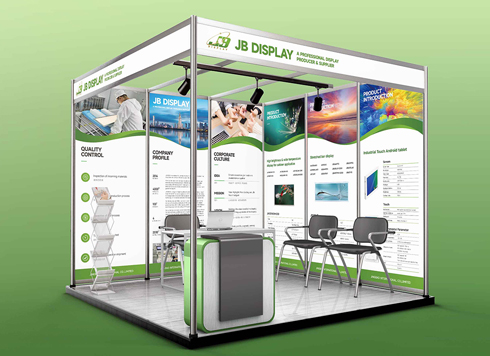 Booth Poster Design for Professional Monitor Product Suppliers
The standard exhibition booth poster projec ...
-
 Design of Standard Exhibition Booth Posters for Beauty Instruments
Carefully designed a standard exhibition bo ...
-
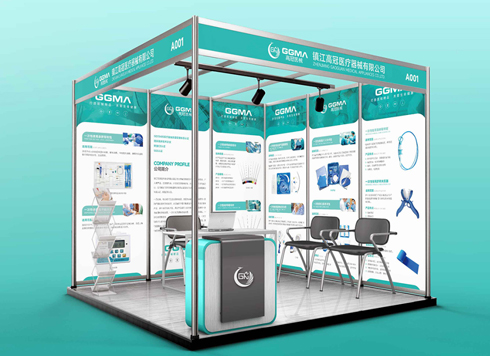 Design of Exhibition Posters for Medical Device Standards
XiYue is designing an exhibition booth post ...
-
 Collection of Brochure Design Cases in 2024 (Cover Series 02)
Our brochure design projects focus on diver ...
-
Both the pen-barrel printer and the uniform embroidery vendor sent the logo file back—should versions have been separated from the start?
Date: Oct 20, 2026 Read: 7
-
When an A4 one-pager is scaled straight to A5 for print, where does it feel cramped first if font sizes and margins are not rechecked in millimeters before printing?
Date: Oct 19, 2026 Read: 11
-
Where does a semi-transparent white overlay on a cover photo fail first if it is not flattened before printing?
Date: Oct 18, 2026 Read: 12
-
Brochure spread photo has a strip eaten away in the middle—what number should you ask the printer before going to press?
Date: Oct 17, 2026 Read: 14
-
For a packaging box with a round window, should the window position be set by the designer in the artwork first, or wait until the printer's die line is ready?
Date: Oct 16, 2026 Read: 17